Extra sources (globe icon)
The globe icon next to Search turns extra sources on or off. When it is on, the player may look for more places to play a title. That can help find some content, but it also uses more data and can make search and playback feel slower on a weak connection.
Slow connection?
If pages take forever to load, searches hang, or video buffers more than usual, turn extra sources off. Your regular library still works without them.
Turn extra sources off
Section titled “Turn extra sources off”- Open jfapp.xyz and sign in.
- Go to the Search bar at the top.
- Tap the globe icon to the left of Search to turn extra sources off.
When they are off, the icon becomes a globe with a slash:
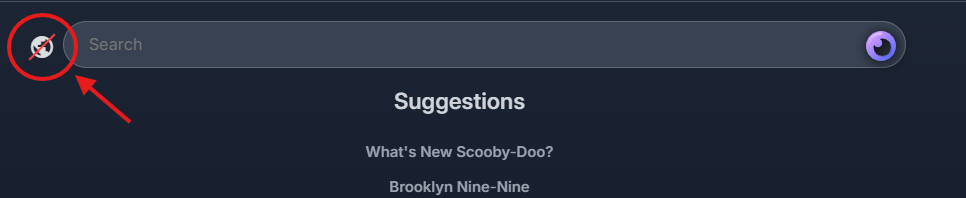
Tap the same icon again to turn them back on (for example after you switch to faster Wi‑Fi).
When to leave them on
Section titled “When to leave them on”Keep extra sources on when your connection is stable and you want the player to check more places for a title. Prefer leaving them off on mobile data, busy Wi‑Fi, or any network that already feels slow.
Still having trouble?
Section titled “Still having trouble?”- Start with the troubleshooting guide for buffering, login, and connection fixes.
- Lower stream quality in the player settings (gear icon during playback).
- See Watch on any device for device-specific fixes.
- If a title is missing from the library, ask for it instead of relying on extra sources.